
Fix SQL Server Error 5172 (Invalid File Header) in 5 Ways
SQL Server error 5172 says the header for a database file is not a valid database file header. Error 5172 stops an attach or a startup so the database remains out of reach.
This guide explains what the message means and gives five fixes in the order that protects your data.
Quick SummarySQL Server error 5172 means a database file header failed validation. Check which property the message names. Restore a verified backup first. Copy the files again from the source when a bad copy caused the error. Attach the MDF file with a rebuilt log when only the LDF file fails. Rebuild the system databases when model, msdb or master fail. Use SQL Recovery when no backup exists. Copy the files before any repair.
What Does the 5172 Header Message Mean?
SQL Server checks the header page of a database file when it opens the file. Error 5172 means the header failed that check so SQL Server refuses the file. The message names the property that failed. The two names you meet most are PageAudit and FILE SIZE.
Msg 5172
The header for file 'D:\Recovery\OrdersDB.mdf' is not a valid database file header. The PageAudit property is incorrect.

Msg 5172
The header for file 'D:\Recovery\OrdersDB.mdf' is not a valid database file header. The FILE SIZE property is incorrect.- PageAudit property is incorrect. The header page content does not match what SQL Server expects. Ransomware, a disk fault or bad sectors damage a header page this way.
- FILE SIZE property is incorrect. The size that SQL Server finds on disk differs from the size in the header. A copy that stopped early has a smaller size than the original file.
- Crash or power cut. A file that was half written when the server stopped fails the same check.
Do You Know?Error 5171 says the file is not a primary database file. Error 5172 says the header failed validation. Follow fix SQL Server error 5171 when your message names a secondary file instead of the primary file.
Which File Raised Error 5172 and During What?
The file name in the message decides the fix. Match your case in the table before you touch any file.
| Situation | File in the message | Start with |
|---|---|---|
| Attach of a database that you copied | User MDF or NDF file | Method 2, then Method 1 |
| Attach with an old or mismatched LDF file | LDF file | Method 3 |
| SQL Server does not start | model.mdf, msdb.mdf or master.mdf | Method 4 |
| Database stopped working after an attack or a disk fault | User MDF file | Method 1, then Method 5 |
Compare the size and hash of the damaged file with the source file. A different size means the copy stopped early and a different hash means damaged content.
Get-Item D:\Recovery\OrdersDB.mdf | Select-Object Name, Length, LastWriteTime
Get-FileHash -Algorithm SHA256 -Path D:\Recovery\OrdersDB.mdf
How to Fix Error 5172 in SQL Server?
Try the methods in this order. Every example uses the database OrdersDB and the folder D:\Recovery. Replace the names with your own values.
Method 1: Restore a Verified Backup
Restore the database from backup when a recent backup exists. Check the backup file first so the restore does not fail halfway.
RESTORE VERIFYONLY FROM DISK = N'D:\Backups\OrdersDB_Full.bak' WITH CHECKSUM;

RESTORE DATABASE OrdersDB
FROM DISK = N'D:\Backups\OrdersDB_Full.bak'
WITH REPLACE, RECOVERY, STATS = 10;
Follow restore database with NORECOVERY when you need differential and log backups too. The RESTORE reference from Microsoft lists every option.
Method 2: Copy the Files Again From the Source
Use this method when the error appeared after you copied or moved the files. Detach the source database before the copy because a file that is online can capture half written pages. Copy the MDF, NDF and LDF files together.
EXEC sp_detach_db @dbname = N'OrdersDB';

-- copy OrdersDB.mdf, OrdersDB_2.ndf and OrdersDB_log.ldf to D:\Recovery
-- compare size and hash with the source files before you attach
Attach the copied files with CREATE DATABASE OrdersDB ON (FILENAME = N'D:\Recovery\OrdersDB.mdf') FOR ATTACH; after the hash matches. Error 5172 on a fresh copy of a healthy source file means the copy broke the file.
Method 3: Attach the MDF File With a Rebuilt Log
Use this method when the message names the LDF file. According to Microsoft, ATTACH_REBUILD_LOG needs a clean shutdown of the database and all data files. SQL Server creates a new log file of 1 MB when the old log file is missing.
CREATE DATABASE OrdersDB
ON (FILENAME = N'D:\Recovery\OrdersDB.mdf')
FOR ATTACH_REBUILD_LOG;
Heads UpA rebuilt log breaks the log backup chain. Take a full backup of the attached database at once. Open transactions in the old log end with the old file.
Method 4: Rebuild the System Databases
Use this method when SQL Server does not start and the ERRORLOG names model.mdf, msdb.mdf or master.mdf. Microsoft states that a rebuild re-creates master, model, msdb and tempdb. Execute the command from an elevated command prompt on the installation media.
setup /QUIET /ACTION=REBUILDDATABASE /INSTANCENAME=MSSQLSERVER /SQLSYSADMINACCOUNTS=CONTOSO\DBAdminsAdd /SAPWD in Mixed Mode. The rebuild re-creates master, model, msdb and tempdb so logins and Agent jobs in msdb disappear unless you restore backups. Follow rebuild the master database without a backup for the full procedure.
Method 5: Recover the Data With SQL Recovery
Use this method when no backup exists and fresh copies of the files fail the same way. SQL Recovery opens the MDF and NDF files directly so the failed attach does not stop the scan. Advanced Scan targets corrupted files.
Download SQL Recovery Buy SQL Recovery
- Install SQL Recovery and select Add File.
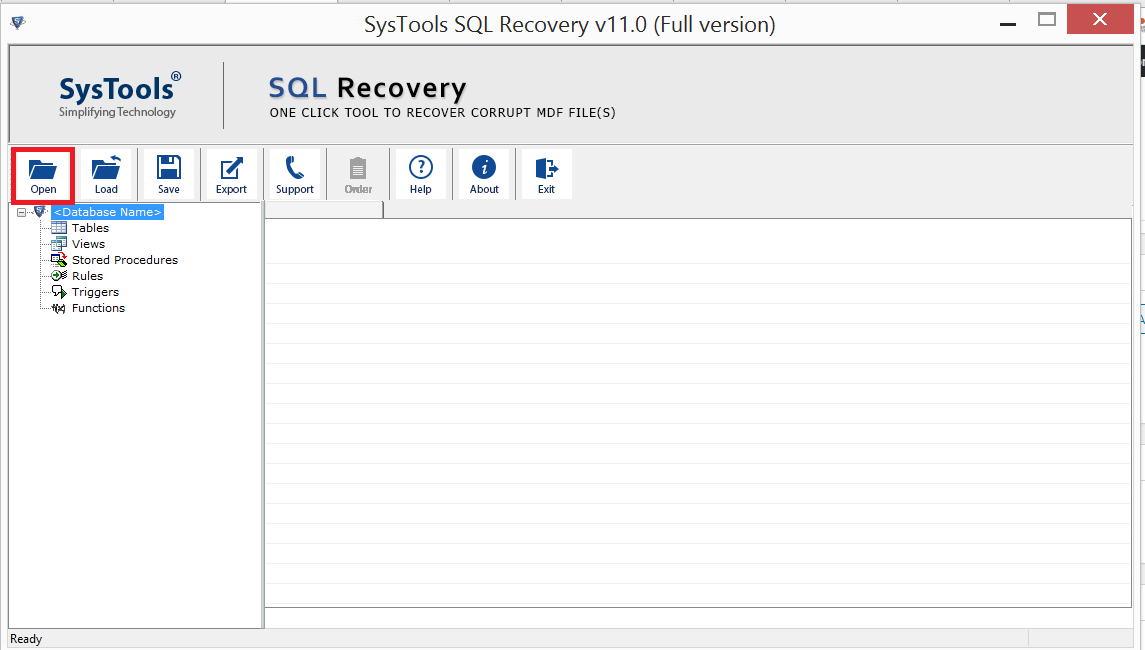
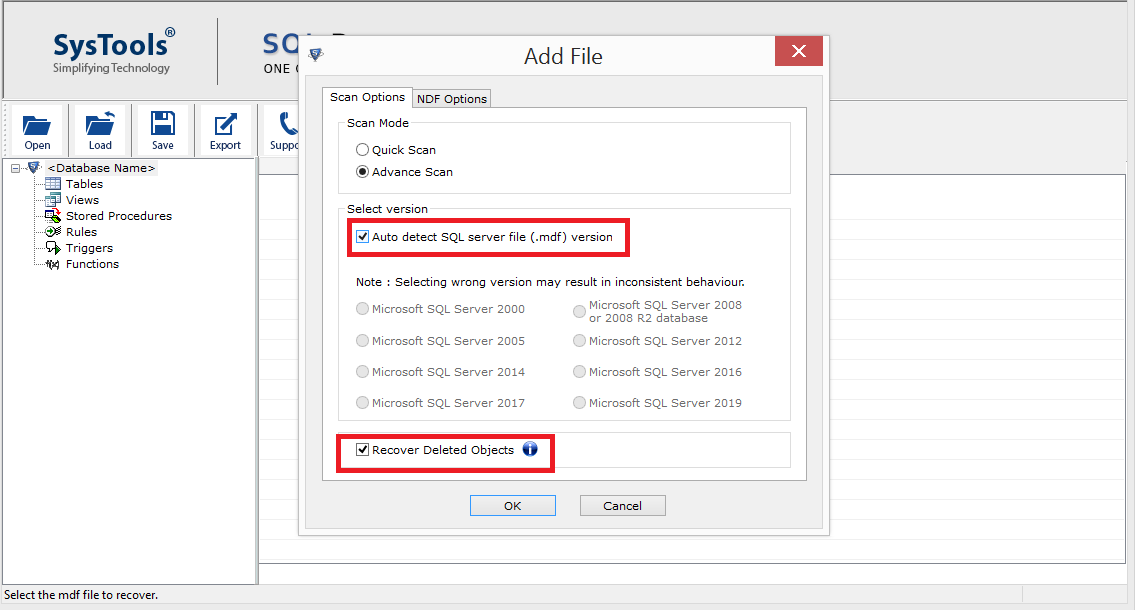
- Browse to the damaged MDF file and select Advanced Scan. Confirm the SQL Server version of the file.
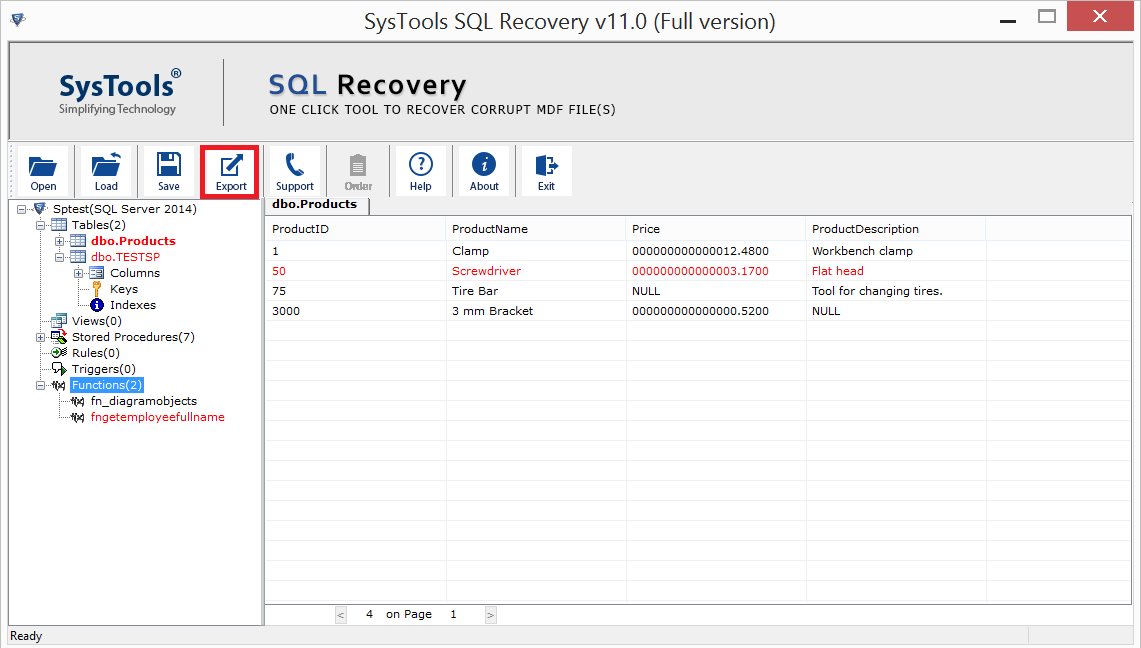
- Open the preview and check the tables, views and stored procedures that SQL Recovery found.
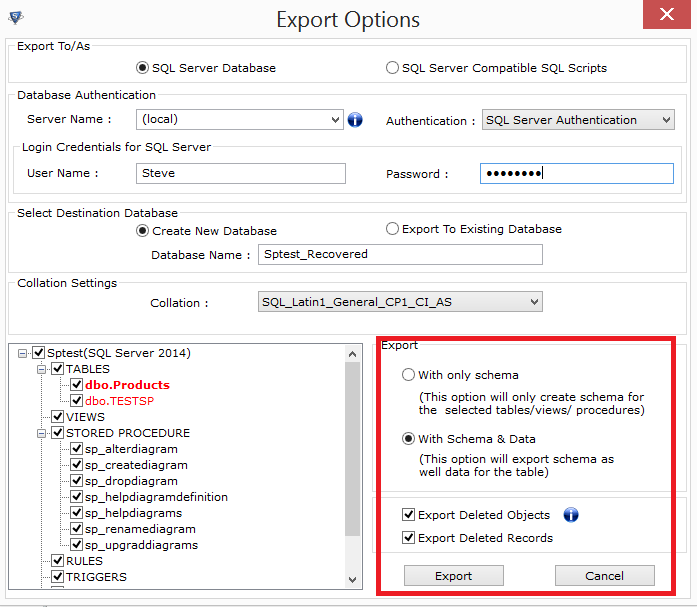
- Select Export and save the objects to a SQL Server database, to SQL scripts or to CSV files.
What Does SQL Recovery Need on Your PC?
Check both tables before you install SQL Recovery on the server or on a separate workstation.
Software Specifications
| Attribute | Detail |
|---|---|
| Software name | SQL Recovery |
| Version | 14.0 |
| File types | MDF and NDF |
| SQL Server versions | 2025, 2022, 2019, 2017, 2016, 2014, 2012, 2008 R2, 2008, 2005 and 2000 |
| Scan modes | Quick Scan and Advanced Scan |
| Export options | SQL Server database, SQL scripts and CSV |
| SQL Server installation | Needed only for export to a live server |
| Demo limit | Preview of every item and export of 25 records per table and 5 other objects |
System Specifications
| Component | Requirement |
|---|---|
| Processor | Intel Core 2 Duo E4600 at 2.40 GHz or equivalent |
| RAM | 4 GB |
| Hard disk space | 100 MB free |
| Operating system | Windows 7, 8 and 10 (32 or 64 bit), Windows 11 (64 bit), Windows Server 2008, 2012 R2, 2016, 2019, 2022 and 2025 |
| Framework | Microsoft .NET Framework 4.5 or later |
| Permission | Launch SQL Recovery as administrator |
Questions DBAs Ask About Error 5172
Does Error 5172 Mean Ransomware Hit the File?
No. Ransomware is one cause. A copy that stopped early, a disk fault and a crash produce the same message. Compare the size and hash with the source file before you decide.
Can DBCC CHECKDB Repair a Damaged File Header?
No. SQL Server rejects the file before DBCC CHECKDB can open the database. Restore a backup or rebuild the system database instead.
What Is the Difference Between the PageAudit and FILE SIZE Messages?
PageAudit points to damaged header content. FILE SIZE points to a size mismatch between the header and the file on disk.
Does Error 5172 on model.mdf Stop SQL Server From Starting?
Yes. SQL Server uses the model database as the template for tempdb at startup so a damaged model file stops the instance. Rebuild the system databases to bring the instance back.
Can You Attach an LDF File From Another Copy?
No. The LDF file must belong to the MDF file. Attach the MDF file with ATTACH_REBUILD_LOG when the log file does not match.
Does a Rebuilt Log Lose Data?
Committed data in a clean MDF file remains in place. Open transactions end and the log backup chain breaks so take a full backup at once.
How Do You Prevent Error 5172?
Detach the database or stop the instance before you copy files. Check every copy with a hash and verify every backup with RESTORE VERIFYONLY.
Next Steps After Fixing Error 5172
Take a full backup of the repaired database at once. Execute DBCC CHECKDB on the database and confirm that SQL Server reports no errors.
Set a hash check into your copy routine. A mismatch caught before the attach saves hours of recovery work.
Who, How and WhyAndrew Jackson, Technical Content Specialist, wrote this guide. The attach, restore and rebuild steps follow the Microsoft documentation linked above and the T-SQL was checked for syntax but not executed on a live server. The error text and the causes come from practitioner reports and were not confirmed on a Microsoft page for error 5172.
Key Takeaways
- SQL Server error 5172 means the header page of a database file failed validation.
- The file name in the message decides the fix. Compare size and hash with the source file first.
- ATTACH_REBUILD_LOG rebuilds a missing or mismatched log and breaks the log backup chain.
- Rebuild the system databases when model, msdb or master fail.
- SQL Recovery exports the data when no backup exists.